
On Threads, you can see likes on a post right under it (look for the heart icon). If you want to see who liked your Threads post, open the post and tap View activity to see a list of people who liked, reposted, or quoted it.
You can also find posts you’ve liked on Threads by going to your Profile, then Menu, and opening Your likes. This is super useful for when you want to revisit ideas, creators, or examples later.
Likes matter because they’re quick feedback. They help you spot what topics and formats work best, which is especially helpful if you’re trying to grow an audience or eventually make money on Threads.
And if you’re posting consistently for growth, you need consistency.
A scheduler fortified with an analytics tool can help you track what earns likes over time.
This article shows how to see likes on Threads using a step-by-step guide, along with alternative ways to view your likes and scale your Threads engagement.
TL;DR
- Likes show up under each post and you can tap View activity to see who liked it.
- You can find posts you liked by going to Profile then Menu then Your likes.
- Track likes with replies and reposts to learn what works and repeat it.
- Use a simple system or tool to stay consistent and spot patterns over time.
Try BlackTwist for free
4,000+ creators and small companies use BlackTwist to grow their audiences every month- Why Viewing Likes Matters on Threads
- Insights and Trends on Threads: All You Need to Know in 2026
- How To Navigate The Threads Interface
- How to View Likes on Your Threads
- What About Viewing Likes on Other Users’ Threads?
- Tips for Interacting with Popular Posts and Gaining Insights
- How to Use BlackTwist to Get More Engagement on Threads: A Step-by-Step Guide
- FAQs about Likes on Threads
- Related Reading
- Final thoughts
Why Viewing Likes Matters on Threads
Likes on Threads are a signal that your post is connecting with people. Tracking both views and likes on your posts is especially important when you’re testing new topics, jokes, opinions, or hooks.
You can then document your findings and find the patterns people are responding to best.
Here’s why checking likes on Threads is actually useful:
- Threads likes show what’s working
Likes are the easiest yes signal your audience can give you. If one type of post keeps getting more likes, that’s a clue about what your followers want more of.
- Tracking likes helps your reach over time
Threads uses an AI ranking system that looks at different engagement signals (including likes and replies) to decide what to show people.
- Likes are a starting point for community engagement
Who liked my post?
Why did they like it?
A post can get likes but still fail to bring new followers or clicks. So to help you see what's getting better engagement, Threads Insights breaks down interactions into likes, replies, reposts, and quotes.
When you open View activity, you can see who liked your post and who reposted or quoted it. This lets you find the people who keep coming back to your content.
- They also help you spot patterns you can repeat
However, you need to look for repeatable patterns:
- Posts that earn likes within the first hour
- Topics that get steady likes every time you post
- Formats that people react to more than others
Can everyone see your likes on Threads?
Yes, the public can see your likes on Threads. But you can choose to hide likes and share counts on your posts in your privacy settings.
If you’re using ghost posts, other people may not see like counts the same way, and only you can see full like and reply details.
So when measuring performance, rely on your Insights and activity view, not what the public can see.
If you’re posting a lot, the hard part becomes tracking what’s getting likes. It’s important to create a setup before your account picks up, and even better if you have a setup before starting the post.
A tool like BlackTwist can help with your scheduling and seeing patterns across posts. This also means you spend less time counting and manually clicking on each post.
Sign up for BlackTwist and set up your next week of Threads posts in one sitting.
Insights and Trends on Threads: All You Need to Know in 2026
Likes still help you track trends on Threads because they’re the quickest signal that a topic is landing with your audience. Of course, certain posts in your niche are getting steady likes. That usually means people agree, relate, or want more of that topic or conversation.
But in 2026, relying on likes alone is not enough. Threads has added a few features that make trend-spotting much more accurate:
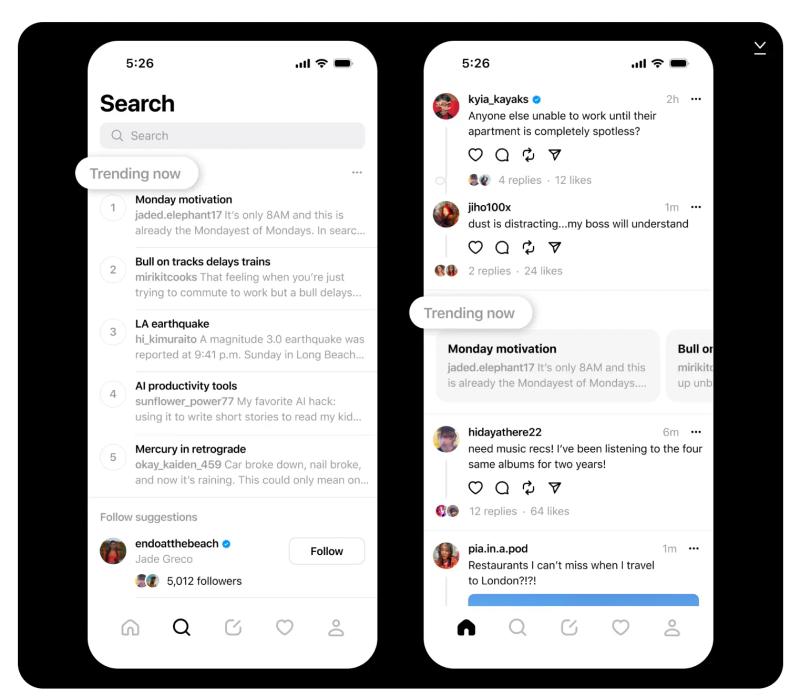
Trending Now: Threads has a Trending Now area that highlights what people are talking about, so you don’t have to guess based only on your feed.
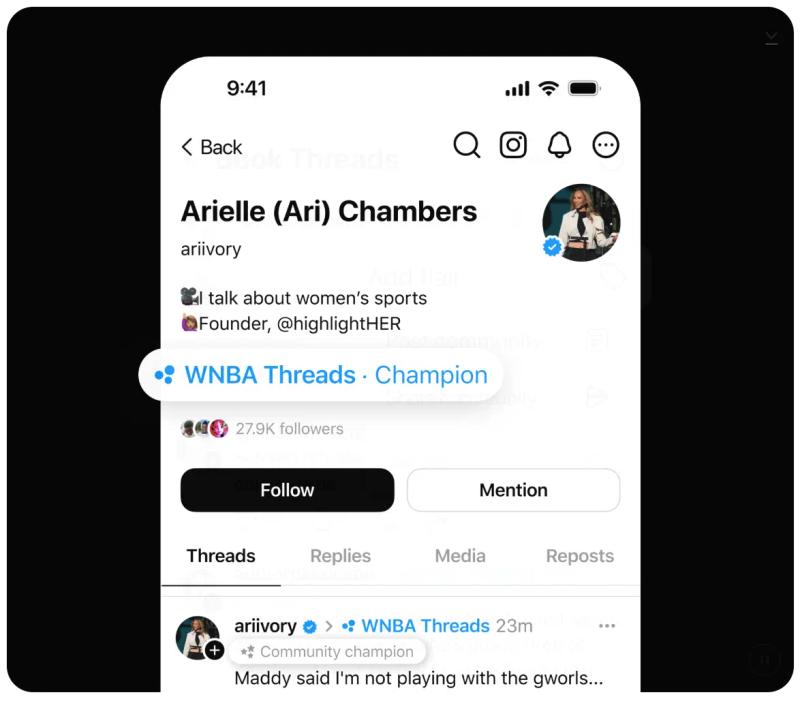
Communities: These are topic spaces where you can follow conversations around specific interests. This helps you spot exactly what your audience likes.
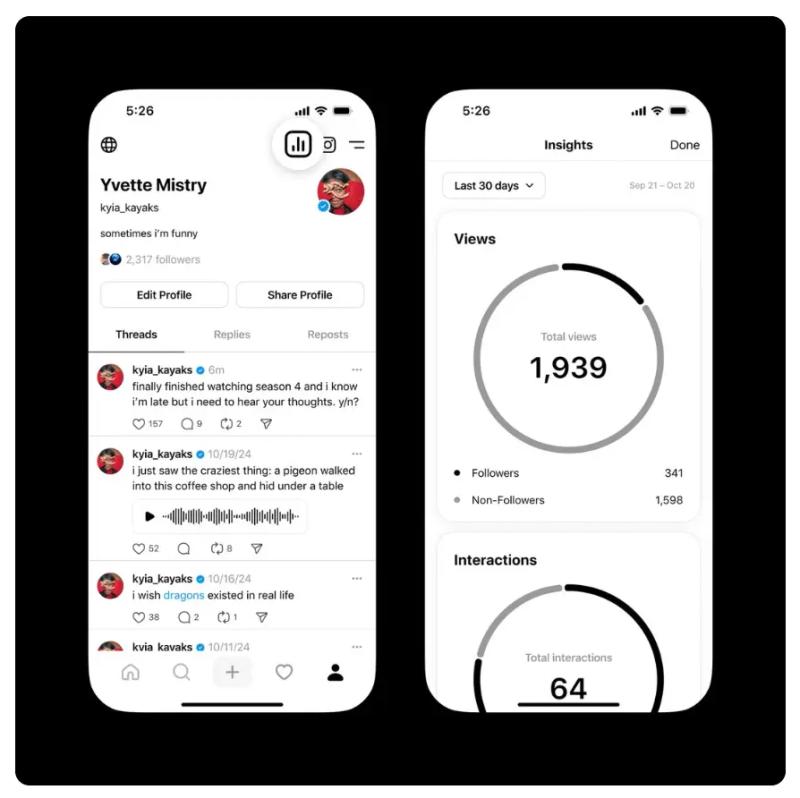
Insights and Interactions: Threads breaks engagement into likes, replies, reposts, and quotes as well as growth over a period of time. These metrics matter because a post with fewer likes can still be a winner if it gets strong replies or shares.
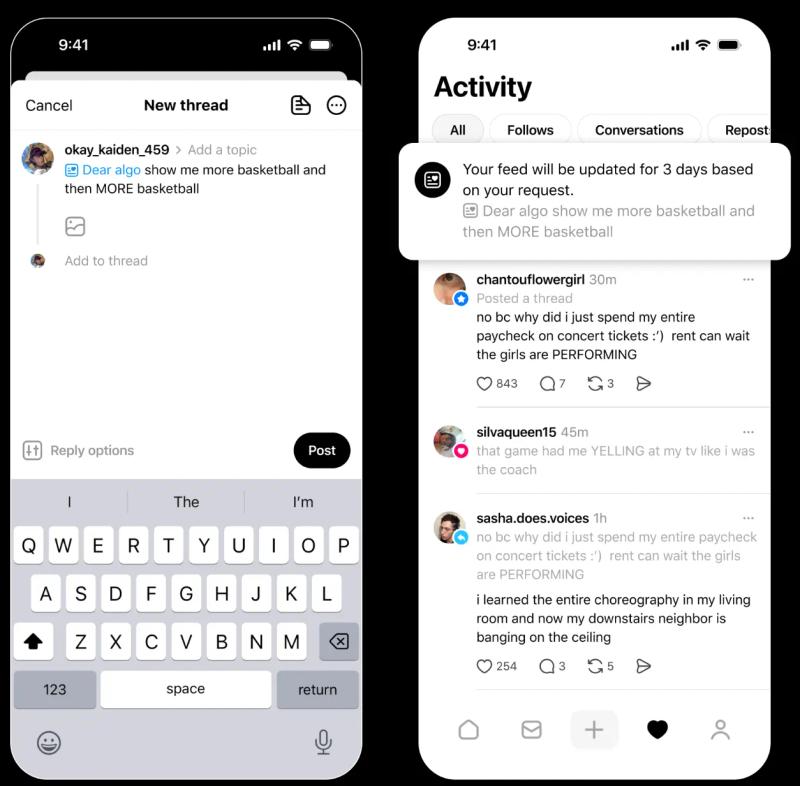
Dear Algo: Threads is rolling out Dear Algo, where you can tell Threads you want more (or less) of certain topics for a short period. That means what you personally see as “trending” can shift based on your settings.
Keep in mind that if you post in ghost mode, replies go to DMs, and only you can see who liked and replied. So ghost posts are not great for public trend tracking.
What Are the Advantages of Using Threads Metrics?
Here’s what you need to look for and how to use it:
- Use likes to find trends. Likes tell you what people notice.
- Use replies and reposts to analyze those trends. Replies and reposts tell you what people care enough to discuss or share.
- Then track trends across your own posts over weeks (instead of eyeballing it).
Again, having a one-dashboard solution to draft, schedule, repurpose your content, and track analytics saves you a ton of time. However, look for tools that don't have too many irrelevant features, which would make it another hassle to deal with.
How To Navigate The Threads Interface
Like any other app, Threads keeps adding features and changing its user interface. If you already know how the Threads app works, you might pick up on these changes quickly.
If not, here’s how to get started with familiarizing oneself with operating the Threads app.
- Threads home feed
This is the first screen you see when you open the app. Under each post, you’ll spot the heart icon, which shows the like count on Threads. If you tap the post, you’ll get a full view of your Threads engagement.
- Your profile page
Your profile is the easiest place to check likes on your Threads posts. Open your profile, tap any post, then tap View activity to see who liked it (and who reposted or quoted it).
- Individual post view
When a post is open in full view, Threads shows the cleanest engagement details. That’s also where View activity lives for your posts.
- Posts you’ve liked
If you’re trying to find posts you’ve liked on Threads, go to your profile, open the menu, then open Your likes. On Threads.com, Meta also added access to liked posts from the main menu, so it’s easier to revisit them on desktop.
How to View Likes on Your Threads
Likes aren’t the finish line. They’re a quick way to learn what your audience actually cares about, so you can post smarter next time.
Step one: Open Threads and log in. Make sure you’re on the account that posted the thread you want to check.
Step two: Go to your profile. Tap your profile icon to see your posts in one place.
Step three: Open the post you want to review. Tap the post to open the full view.
Step four: Check the like count. Look under the post for the heart icon and the number next to it.
Step five: See who liked your post (when available). Tap View activity to see who liked, reposted, or quoted your post.
If you can’t see like counts, check your settings. Threads lets you hide like and share counts on a post, which can make numbers disappear. This is available as a per-post option.
Also, track trends across posts. Look for patterns like which topics get likes consistently, and which ones only pop once.
If you’re posting often, a simple analytics view like what BlackTwist offers can save you from guessing how you have done so far and what ideas you should work on every week.
Why Seeing Likes Matters on Your Posts
Consistency helps you stay visible long enough for people to recognize you and start engaging. Ask a simple question, take a clear stance, or share a useful tip people can agree with. Those tend to earn quick likes and replies.
Feedback on content: When a post gets more likes than your usual, that’s your clue that your message, topic, or first line connected with people.
Content strategy: Likes help you spot what style works best for your audience, like short opinions, quick tips, funny takes, or personal stories. The Threads algorithm also tracks deeper signals like replies, reposts, and quotes.
Tracking post performance: Review likes alongside other interactions in Insights to see whether people are just tapping the heart or actually sharing and talking.
How to use your Threads likes the expert way
Start by opening your post and tapping View activity so you can see who liked, reposted, or quoted it. Next, check Insights and look at Interactions to compare likes with replies, reposts, and quotes over time.
Once you have enough data, analyze them so you can repeat what worked by keeping the same topic or format and testing a new hook (that’s basically your first line).
One thing to always keep in mind as you move forward with your Threads strategy is replying to comments early. That keeps the post active and can actually lift your posts’ overall engagement.
Again, doing this manually won't be an effective approach for creating momentum. Use tools like BlackTwist to send quick replies.
What About Viewing Likes on Other Users’ Threads?
If you’re trying to grow and eventually monetize your Threads account, you need to know what’s getting liked in your niche. Even though those likes aren’t under your own content.
If you are doing your market research before creating an account, you can also browse Threads anonymously. But know that your access is quite limited.
However, Threads does not report who visits profiles (profile view metrics are still available), so you can scroll through your competitors' profiles without them getting notified.
Here’s how to create a Threads account.
Now, most of the time, you can see the like count on Threads right on the post. Seeing who liked it depends on the post type and privacy settings.
Here’s how to do it:
Step-by-step: How to See Likes on Other Threads Posts
Step 1: Start by opening Threads and logging in. Your feed loads, and you can browse normally.
Step 2: Find the post you want to check. Scroll your home feed, or use Search to look up a username, keyword, or topic.
Step 3: Open the post for the clearest view. Tap the post so it expands. This is usually where engagement info is easiest to read.
Step 4: Look for the heart icon to see the like count. The number next to the heart shows how many likes the post has.
Step 5: Tap the like count if it’s clickable to see who liked it. On many public posts, you can open the list of accounts that liked it. On private or restricted posts, you may not see the full list.
With ghost posts, other people can’t see the full like totals or who engaged. Those metrics are only visible to the poster.
Tips for Interacting with Popular Posts and Gaining Insights
To put the data you collect into meaningful information, you want to look for patterns across multiple posts. Compare them if they have the same topic, the same hook style, or the same format.
And if you can’t see counts on someone’s posts, it may be intentional. Threads lets people hide like and share counts, so you’ll see less public data in some cases.
Besides these, there are more strategic moves for your Threads marketing to get more data.
Follow the Most Engaging Accounts
Follow the top Threads accounts. Some strategies are generic and true for every niche.
Also, follow creators in your niche who consistently get strong likes on Threads and real replies. Then do this:
- Read their top posts and notice the pattern in the first line, tone, and length.
- Save a few posts you like so you can study them later and borrow the structure (not the exact idea).
- Reply early with something useful. A good reply can get you profile visits even if you have a small account.
Track Popular Topics (not hashtags)
On Threads in 2026, topics and communities matter more than hashtags for discovery and trend tracking.
- Check Trending Now on the Search page to spot what’s gaining attention.
- Tap topic tags you keep seeing, and join relevant Communities when they exist. Communities help you see what your niche audience is liking or talking about.
- Use topic tags on your own posts when they fit, because Threads uses them to connect your post to people interested in that subject.
Always Engage Actively
Reviewing popular posts is a tried-and-true method. But you cannot be doing everything behind the scenes. You need to interact in a way that puts you on the map. This is especially important if you are a business on Threads.
They don’t have to be your direct competitors. For interactions, just focus on the accounts that are in your niche but complement your offering in some way.
Let’s take a look at a Threads B2B example. If you are a CEO speaking about startups, you can comment on a chief marketer who has posted about startups from their perspective.
Here’s a general guideline for your interactions:
- Like posts you genuinely agree with, but focus more on replying with a clear point or example.
- Quote and repost that matter to your audience and add your take. That’s often better than a plain repost.
- Pay attention to what gets both likes and replies. Likes show quick interest. Replies and reposts show people cared enough to respond or share.
How to Use BlackTwist to Get More Engagement on Threads: A Step-by-Step Guide
Most of creators on Threads have the same three problems: they post inconsistently, they don’t know what’s working, and they don’t have a system for keeping good posts alive.
BlackTwist is built to fix those exact problems with scheduling, templates, and analytics.
First, Set It Up
Start by signing up for BlackTwist. You get asked a few questions before getting access to your own account. The interface also helps you decide what works best.
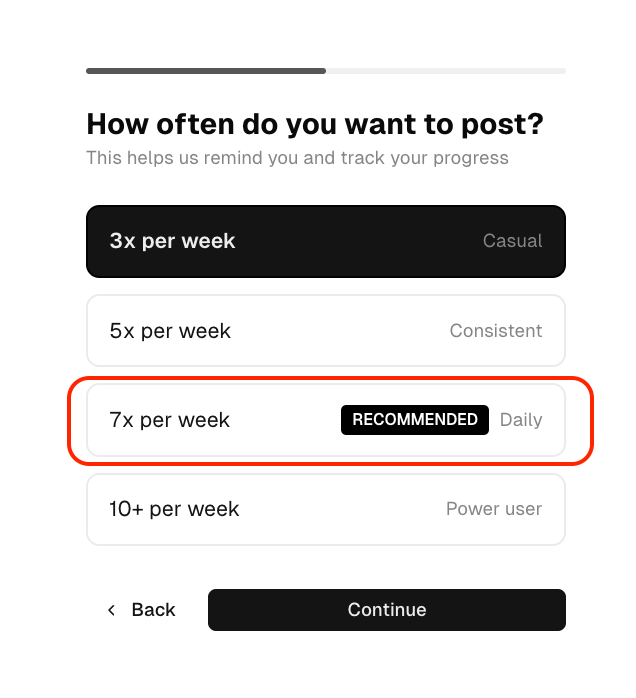
Then, you need to connect your Threads account. Then, you can write, save drafts, schedule, and review performance in one place instead of bouncing between notes apps, reminders, and the Threads app itself.
And if you run more than one Threads brand account or creator profile, set up every account now. BlackTwist is designed for multi-account management, so you don’t have to log in and out all day.
Next, Write Posts Faster
Use the built-in editor to draft posts and threads. It auto-saves drafts while you type, lets you build multi-post threads, reorder posts, add media, and preview on mobile before you publish.
Fleeting thoughts are spontaneous insights that are also short-lived in nature. The draft section was designed to capture those. Just keep in mind that on Threads, the first line does most of the work.
Sometimes, do you hit a creative block?
Wondering what to post on Threads?
Use the Inspiration Hub in your dashboard to access over 40 templates for free. Over a thousand high-performing posts are available in paid tiers.
Next, Schedule for Consistency
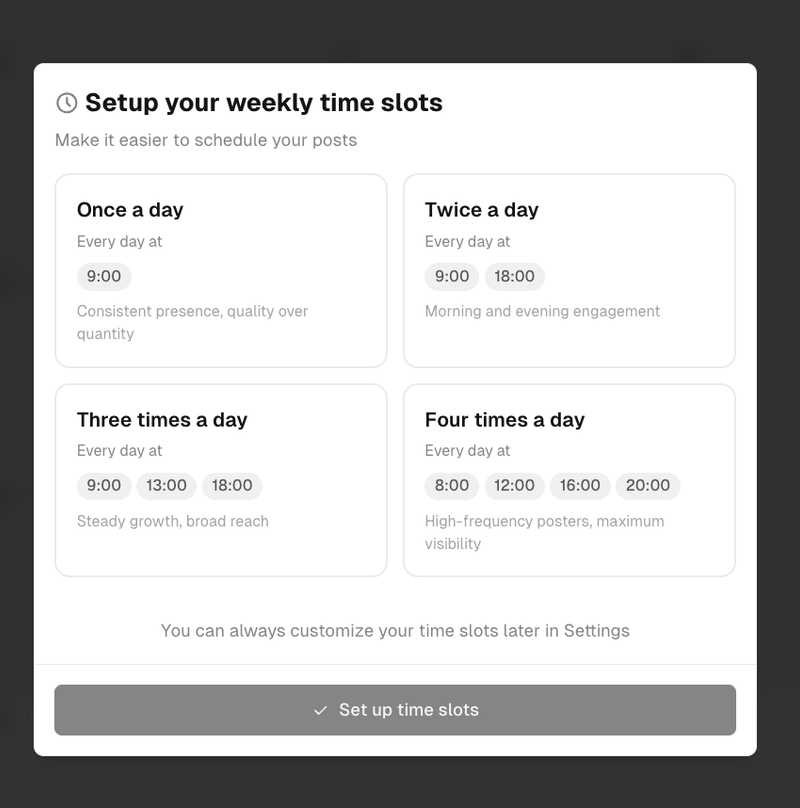
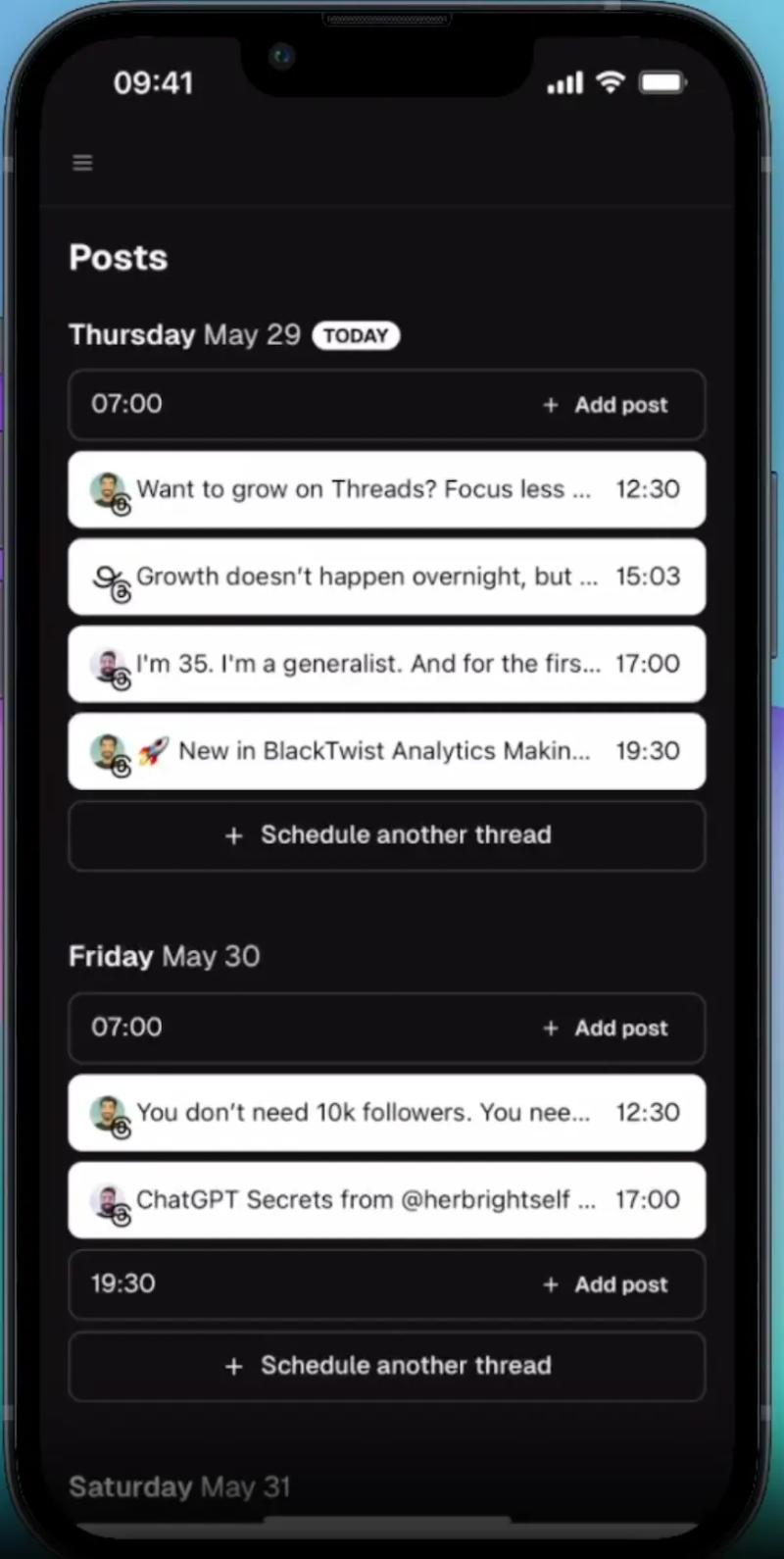
Consistency is a huge driver of engagement because people can’t like what they never see. BlackTwist scheduling is built around time slots and a queue, so you can batch your content and let it publish automatically.
You can schedule by choosing the next open slot, picking a slot manually, typing a natural-language time like “tomorrow at 11 am,” or using the calendar.
The best part is that you can do this on the go using the BlackTwist mobile app.
Always Use Follow-up Replies to Get More Comments, Clicks, and Real Conversations
Posting consistently is one part of your strategy. Boosting your engagement also depends on how much you give back.
BlackTwist Follow-up (Auto-Plug) lets you automatically publish a reply to your own post or thread when certain conditions are met. For instance, after a set amount of time or after the post passes likes, reposts, or comments threshold.
Use follow-ups to add value. Threads is pushing toward genuine replies, and obvious engagement bait tends to age badly.
Keep Your High-Performing Posts Alive with Auto-Repost and Repurpose (Without Rewriting from Scratch)
Auto-Repost can automatically repost a published post after a delay you choose, which helps you reach new time zones and people who missed it the first time. It works for single posts and threads.
Always auto-repost evergreen posts and never for news.
Then use the repurpose workflow to take top-performing posts directly from analytics and reschedule them with a click.
However, you need to repurpose with a small upgrade. Keep the core idea, but improve the first line or add a better example.
Now, Find Out What Drove Your Likes
Threads shows likes in the app. But BlackTwist’s advantage is that it pulls your post performance into an Analytics dashboard, so you can compare posts without manually opening each one.
BlackTwist’s analytics focuses on account and post insights and is meant to show the audience, post performance and growth in one place.
BlackTwist specifically calls out analyzing key metrics like views, likes, reposts, quotes, and engagement rate, and it added improvements like hourly engagement charts and better filters so you can find patterns faster.
Those metrics line up with what the Threads API exposes to tools, including likes, replies, reposts, quotes, shares, and views.
Important that you don’t chase the biggest like count. Just chase the best repeatable pattern. And look for posts with a strong engagement rate and replies, then write more in that lane.
Use Threads Wrapped to Review Your Year and Stay Consistent
BlackTwist also offers “Threads Wrapped,” which creates a recap video of your activity, streaks, and highlights based on your real data. This is not a growth hack. But it does help you stay consistent by showing progress you’d otherwise forget.
FAQs about Likes on Threads
Can You Check Likes on Threads?
Yes. You can see the like count on Threads under any post (the heart icon). To see who liked your Threads post, open your post and tap View activity.
How Do I See How Many Posts I’ve Liked?
Go to your Threads profile, open the menu, then tap Your likes. This shows all the posts you’ve liked.
Does Threads Notify Likes?
Yes. Threads can send notifications when someone likes your post (and for other actions like replies and mentions). You can control which alerts you get in your Threads notification settings.
How Do I Hide My Likes on Threads?
If you mean hiding the numbers, you can turn on Hide like and share counts in Threads settings. If you mean hiding that you liked someone’s post, there isn’t a “private likes” switch. The only way is to remove the like.
This option should be turned on for each post.
Can People See If I Liked a Post on Threads?
Usually, yes. The person who posted can see who liked their post in activity, and your like may show in the public likes list on public posts. One exception is ghost posts, where only the poster can see who liked and replied.
Related Reading
- How to Remove Threads from Instagram
- Can You Post Videos on Threads
- Can You See Who Views Your Threads
- Does Threads Pay Creators
- Can You Message on Threads
- How to Add Threads to Instagram Bio
- Is Instagram Threads Worth It
- How to Turn Off Threads Notifications on Instagram
Final thoughts
Rival IQ analyzed more than 4 million posts and 9 billion engagements (likes, comments, and shares). When billions of interactions include likes, ignoring them means ignoring how most people actually behave on a platform.
Meta’s own ranking docs show that likes are part of the engagement signals used to predict what people will care about in the Threads feed.
So if you want reach, you need to know how to see likes on threads and how to act on the data you gain.
BlackTwist helps you turn those signals into a strategy. You can schedule consistently, reuse proven ideas with templates, auto-repost winners, and review analytics so you know what actually earns likes over time.
Ready to start building momentum? Sign up for BlackTwist and set up your next week of Threads posts in one sitting.
This is part of our guide to Threads privacy — see the full breakdown of what Threads does and doesn't notify people about.