Tags
Writing
Scheduling
MCP Server
Tags let you label your posts — by campaign, content pillar, client, or any system you use — so you can find them again later and see how each group is performing in Analytics.
What is a tag?
A tag is a small colored label you can attach to any post, whether it's a draft, scheduled, or already published. A post can carry as many tags as you like, and each tag can be reused across as many posts as you like.
Adding tags while you write
In the thread editor, click the tag icon in the header to open the Tags panel.
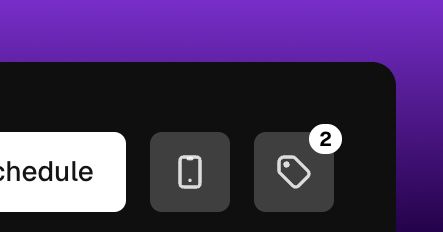
Tags in the post editor
Pick from your existing tags or create a new one on the spot — just type a name and choose a color. The icon shows a small badge with the number of tags you've selected.
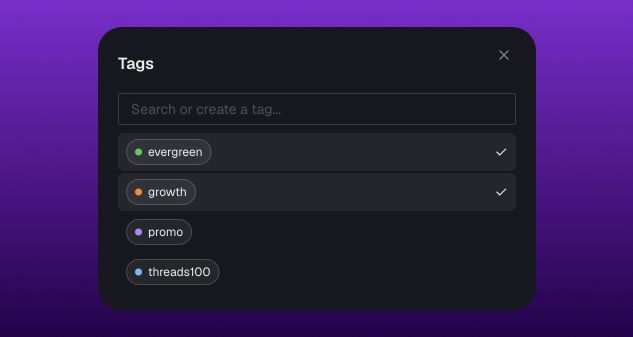
Pick or create new tags
If you save the post as a draft, clicking Save as draft opens a quick Add tags (optional) panel first, so you can tag it on the way out without an extra step.
Editing tags on an existing post
Open any scheduled or draft post — from the Calendar, the Queue, or Drafts — and use the same tag icon in the header. Changes save automatically as you make them, so there's nothing extra to confirm.
Creating and managing tags
You can create a tag the moment you need it: start typing a name in the tag picker, and if nothing matches, a Create "‹name›" option appears with a choice of 8 colors. Tag names can be up to 40 characters.
To rename, recolor, or delete a tag later, open Drafts from the calendar toolbar and click Manage tags. From there you can:
- Rename a tag inline
- Change its color
- Delete it (click once to confirm, then again to remove it)
Deleting a tag removes it from every post it was applied to — this can't be undone.
If you work in a team workspace, tags are shared with your whole team. If you're posting outside a team, your tags are private to you.
Adding tags during bulk upload
Tags also work with Bulk Upload: the CSV template includes a Tags column, where you can list one or more tag names separated by commas.
Tags that don't exist yet are created automatically as part of the import — you don't need to create them ahead of time.
Filtering by tag in Analytics (paid plan only)
Head to Posts Analytics and click the Tags button next to the search field to filter your results.
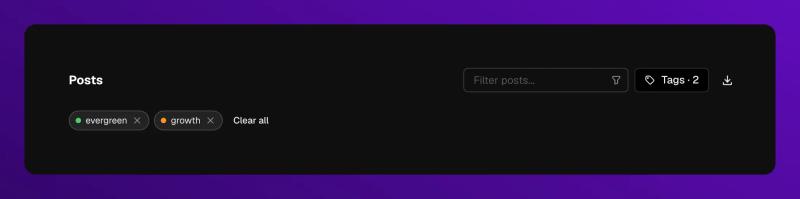
Select one or more tags and the list narrows to posts carrying any of them.
Selected tags appear as removable chips above your results, and each post row shows its own tags underneath the post text — so you can scan performance by tag at a glance.
Filtered results carry through to Download as CSV too — the export includes a tags column with each post's tag names, so you can slice your data by tag in a spreadsheet.
Tags in the MCP server
If you use the BlackTwist MCP server to connect an AI assistant to your account, tags are fully supported there as well — your assistant can list your tags, read a post's current tags, and apply tags to a post, creating new ones automatically if they don't exist yet.
Your Threads growth starts here.
Schedule smarter. Grow faster. Start free.BlackTwist
Give your social a twist.
Links
PricingThreads SchedulerEngagerAnalyticsAI StudioCompareThreads vs. BlueskyHelp centerChangelogGlossaryBlog✨ Affiliate — Earn 30%
© Copyright 2026 BlackTwist. All rights reserved.