AI Studio
Writing
AI Studio
AI Studio is where you write with AI in BlackTwist.
You can open it from AI Studio in the sidebar, or from the Generate with AI button on the Write, Dashboard, and Calendar pages.
What is AI Studio?
AI Studio writes posts in your own voice, using what you already publish as the reference. It looks at your recent posts to learn your topics and tone, then drafts new posts you can review, edit, save, or schedule.
It is available on the Creator plan and above, and it uses AI credits (see How credits work below).
Choosing a mode
When you open AI Studio you pick how you want to work.
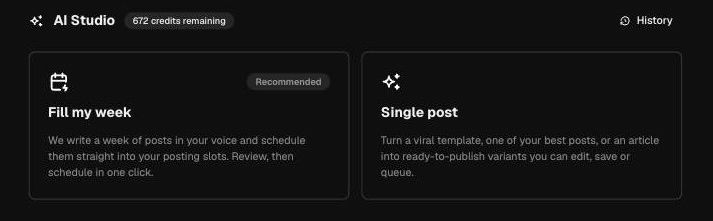
- Fill my week writes one post for each posting slot in your week and schedules the ones you keep.
- Single post turns a viral template, one of your best posts, or an article into several variants of a single post.
You can switch between the two at any time using the tabs at the top of the page.
Fill my week
This is the fastest way to plan a week of content.
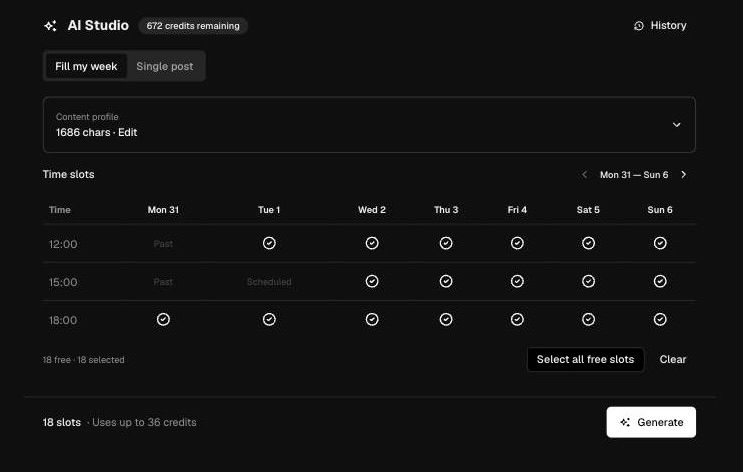
Check your content profile. This is a short description of your topics and style that AI Studio writes for you the first time, based on your published posts. Click Edit to adjust it at any time.
Review the time slots grid. Every free slot in the week is selected for you, so you usually do not have to click anything. Slots that already have a post scheduled are marked as Scheduled, and past slots cannot be selected.
Untick any slot you do not want, or use Select all free slots and Clear to change the whole week at once. Use the arrows at the top right to move to another week.
Check the credit cost at the bottom of the page, then click Generate.
Posts are written one slot at a time, and you can Cancel while it runs. Anything already generated is kept.
Review what came back, untick anything you do not want to publish, then click Schedule to put the rest on your calendar.
Fill my week needs at least 5 published posts on the connected account, because that is what it learns your voice from. If you have fewer, use Single post until you have published a few more.
Single post
Use this when you have one specific idea, or when you want several angles on the same thing.
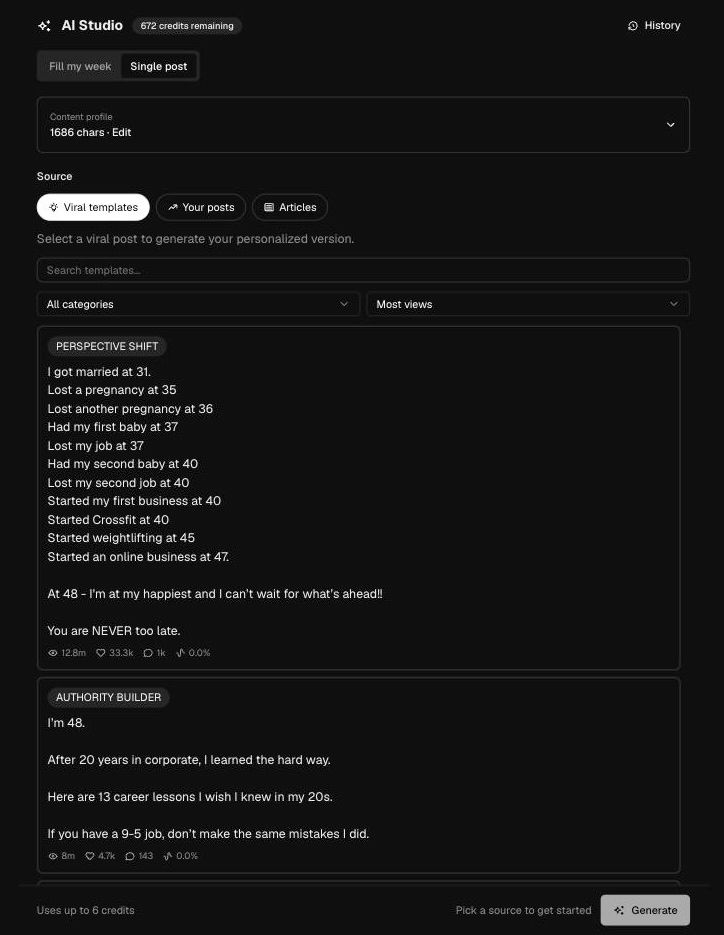
Your content profile sits at the top of this tab too, because it shapes what gets written here as well. It is optional in Single post, but keeping it accurate makes the results sound more like you.
Pick a source:
- Viral templates are posts that performed well across the platform. AI Studio rewrites the structure in your own words and about your own topics.
- Your posts lets you pick up to 3 of your best performing posts to work from. You can sort by views, likes, replies, reposts, quotes or engagement rate.
- Articles lets you paste in a newsletter, blog post or set of notes and turn it into posts.
Set the options. Choose whether you want a single post or a thread, and how many variants to generate. When you pick your own posts you can also choose a mode: Remix for the same topic from a different angle, Sequel for a natural follow-up, or Expand to go deeper on one point.
Click Generate. The variants appear below the form.
For each variant you can Edit in editor to open it in the composer, Save as draft, or Add to queue to schedule it in your next free slot. Generate again gives you a fresh set.
How credits work
Every generated post costs 2 credits.
- Your paid plan (Creator and above) includes a monthly credit allowance that resets at the start of each month.
- Threads are charged per post, so a thread that comes back with 4 posts costs 8 credits. You only pay for the posts you actually get.
- Before you generate, the bar at the bottom of the page shows what the run will cost.
- Your remaining balance is always visible next to the AI Studio title.
- If you run out before the reset, you can top up with a credit pack using the + next to your balance or from the Settings.
History
Everything AI Studio has generated for you is kept under History, at the top right of the page. You can search it, filter by Single post or Fill my week, and save, edit or queue any past result, even if you did not use it at the time.
History is per account owner rather than per social account, so it shows everything you have generated across your connected accounts.
Frequently asked questions
Does AI Studio post anything automatically? No. Nothing is published without you. Fill my week schedules only the posts you keep, and in Single post you choose what to do with each variant.
Can I edit what it writes? Yes. Use Edit in editor to open a result in the normal composer, where you can change the text, add media and set follow-ups before scheduling.
Why does it not sound like me? AI Studio learns from your published posts and your content profile. If the tone is off, edit the content profile and describe your topics and style more precisely, then generate again.
Do I need a time slot set up to use Fill my week? Yes. Fill my week schedules into your posting time slots, so add a few in your scheduling settings first. AI Studio links you there if you have none.
Your Threads growth starts here.
Schedule smarter. Grow faster. Start free.BlackTwist
Give your social a twist.
Links
PricingThreads SchedulerEngagerAnalyticsAI StudioCompareThreads vs. BlueskyHelp centerChangelogGlossaryBlog✨ Affiliate — Earn 30%
© Copyright 2026 BlackTwist. All rights reserved.