How to connect your first Threads account
Social Media
To connect your first Threads account, follow these instructions.
Connect Threads account on Android
Connect Threads account on iOS (iPhone / iPad)
Connect Threads account on desktop (laptop / computer)
Connect Threads account on Android
To connect your first Threads account to BlackTwist open your default web browser on your Android phone (the browser you use every day), and follow this steps:
- Sign up to BlackTwist
- Complete the onboarding questions, at the end, you'll see this screen

- Click on Connect your Threads account — you'll be redirect to the Threads website. Now, if you are already logged in on Threads web, you can skip this step, otherwise, login to Threads in the web
- Click on Login

- The login form will appear
- Fill the form with the Threads credentials (or Instagram, if you paired Instagram with Threads) of the account you want to connect
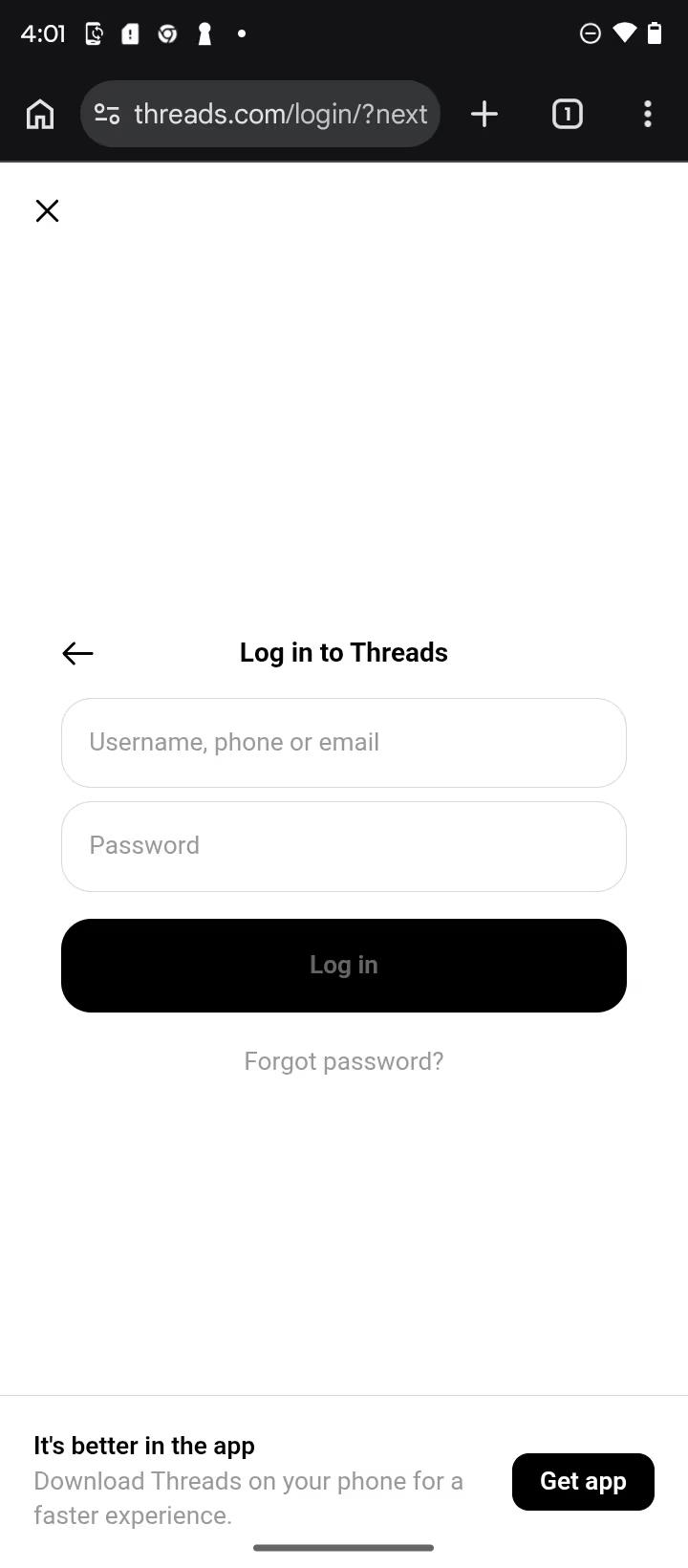

Example of Threads credentials
- Click on the Log-in button
- You'll see the Threads consent screen. On this page you will see the permissions that you will grant to BlackTwist:

Threads permissions consent screen
- Click on "Continue as ..." (your account name will appear in the button)
- You'll be redirected to BlackTwist, and your account is connected! You can now start scheduling content, consume analytics, and engage like a pro.
Connect Threads account on iOS (iPhone / iPad)
To connect your first Threads account to BlackTwist open your default web browser on your iPhone (the browser you use every day), and follow this steps:
- Sign up to BlackTwist
- Complete the onboarding questions, at the end, you'll see this screen

- Click on Connect your Threads account and you'll be redirected to the Threads app and back to your iOS browser
- You'll see the Threads permissions consent screen. On this page you will see the permission that you will grant to BlackTwist to operate.
- Click on "Continue as ..." (your account name will appear in the button)

- You will be redirected to BlackTwist — your Threads account is correctly connected to BlackTwist! You can now start scheduling content, consume analytics, and engage like a pro.
Connect Threads account on desktop (laptop / computer)
To connect your first Threads account to BlackTwist open your browser web browser on your computer, and follow this steps:
- Sign up to BlackTwist
- Complete the onboarding questions, at the end, you'll see this screen

- Click on Connect your Threads account and you'll be redirected to Threads
- If you are not already logged, you will see this screen:

- Click on Log in and insert your Threads account credentials (or your Instagram credentials if you used them to create your Threads account) and click on Log in

- Finally, the Threads permissions consent screen will appear

- Click on "Continue as ... " (your Threads account name will appear in the button)
- You will be redirected to BlackTwist — your Threads account is correctly connected to BlackTwist! You can now start scheduling content, consume analytics, and engage like a pro.
Your Threads growth starts here.
Schedule smarter. Grow faster. Start free.BlackTwist
Give your social a twist.
Links
PricingThreads SchedulerEngagerAnalyticsAI StudioCompareThreads vs. BlueskyHelp centerChangelogGlossaryBlog✨ Affiliate — Earn 30%
© Copyright 2026 BlackTwist. All rights reserved.