How to create and manage a team in BlackTwist
App
Support
Working solo on social can get lonely (and let's be honest, a bit chaotic). If you're collaborating with co-founders, agency clients, or a small marketing crew, BlackTwist's team feature lets everyone work together inside the same workspace, without sharing logins or passing screenshots back and forth in Slack.
Here's everything you need to know to get your team up and running.
Before you start: you'll need a Team or Agency plan
Team functionality is included in our Team and Agency plans. If you're on a different plan, you'll need to upgrade before you can create a team. Once you're on the right plan, you're ready to go.
Creating a team
Creating a team takes about ten seconds:
- Click your profile menu in the bottom-left corner of BlackTwist (where you see your name and email).
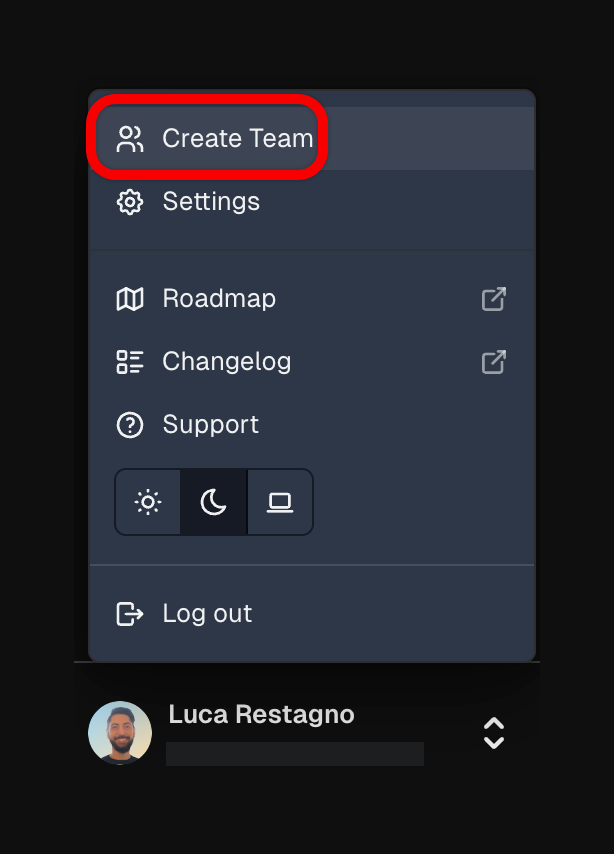
- Select Create Team from the menu.
- Give your team a name and confirm.
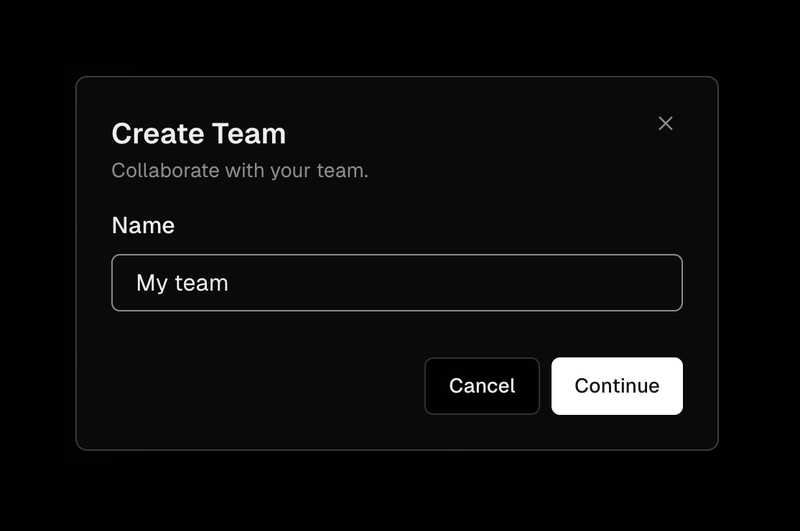
That's it. Your team workspace is ready, and you'll be set as the Owner by default.
Managing your team
Once your team exists, head to the team name from the top os the sidebar, and open Manage team.
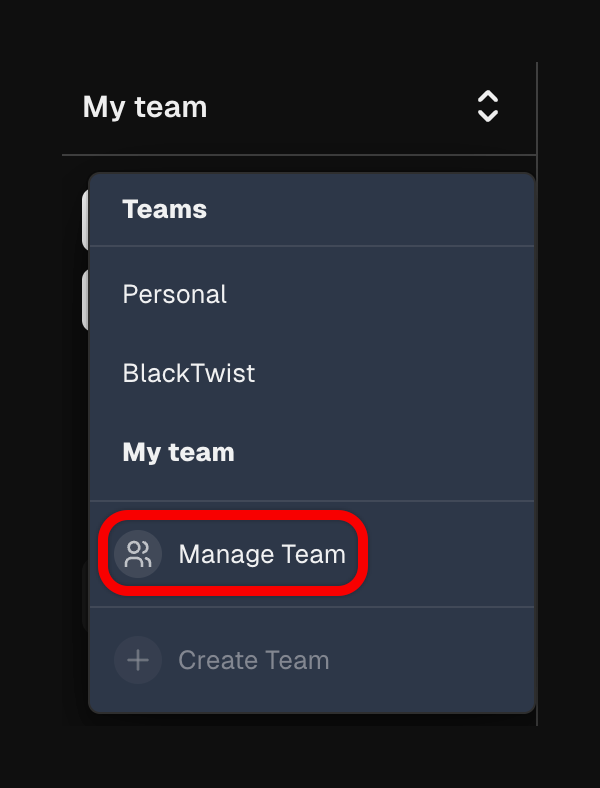
From here, you can see all your members, invite new ones, change roles, or remove people who no longer need access.
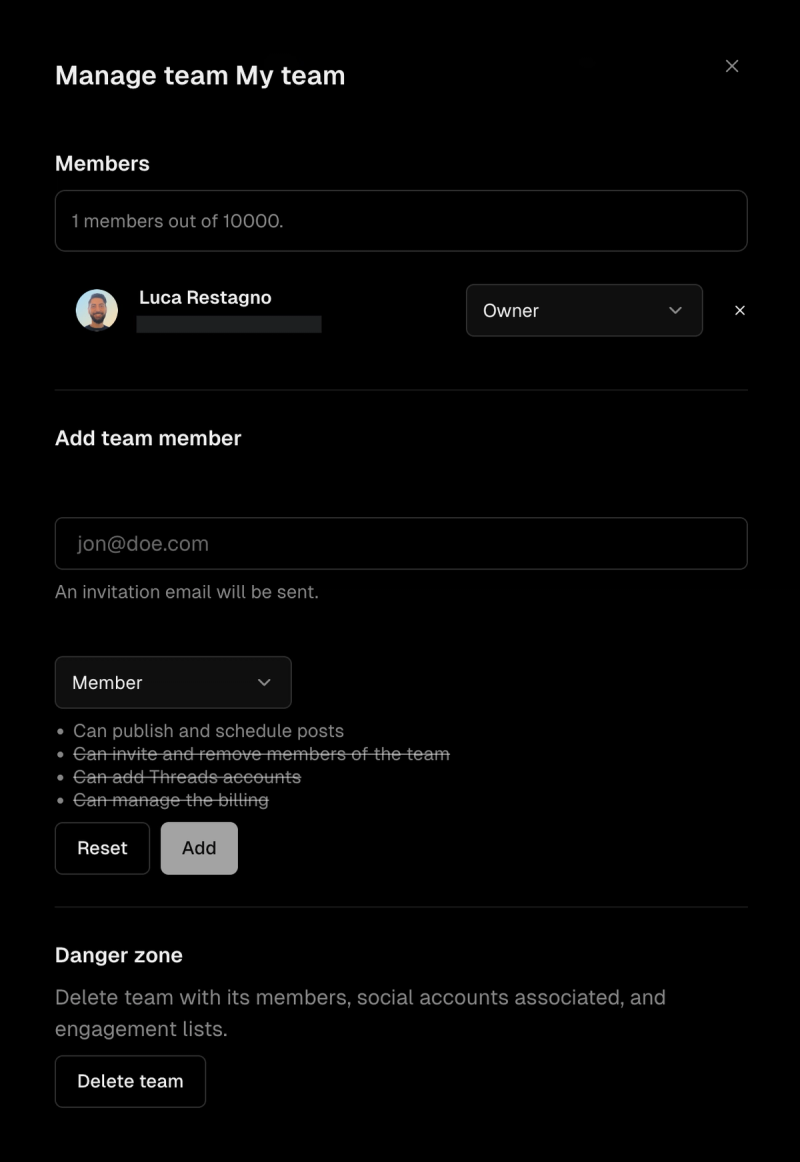
You'll see a panel showing how many members you currently have out of your plan limit (Team plans support up to 10,000 members, plenty of room to grow).
Understanding roles
Every team member has one of three roles, and each comes with different permissions. Pick the role that matches what each person actually needs to do. There's no reason to give billing access to someone who just writes posts.
Member
The most limited role, perfect for contributors who only need to publish content.
A Member can:
- Publish and schedule posts
A Member cannot invite or remove other members, add Threads accounts, or manage billing.
Admin
The right choice for team leads, agency managers, or anyone who runs the day-to-day.
An Admin can:
- Publish and schedule posts
- Invite and remove members of the team
- Add Threads accounts
An Admin cannot manage billing. That's reserved for Owners.
Owner
Full control over everything, including the money side. You can have more than one Owner if you want a co-founder or business partner to share full access.
An Owner can:
- Publish and schedule posts
- Invite and remove members of the team
- Add Threads accounts
- Manage the billing
Inviting a new team member
Adding someone new is straightforward:
- In Manage team, scroll to the Add team member section.
- Enter the person's email address (e.g.
jon@doe.com). - Choose their role from the dropdown. Member, Admin, or Owner.
- Click Add.
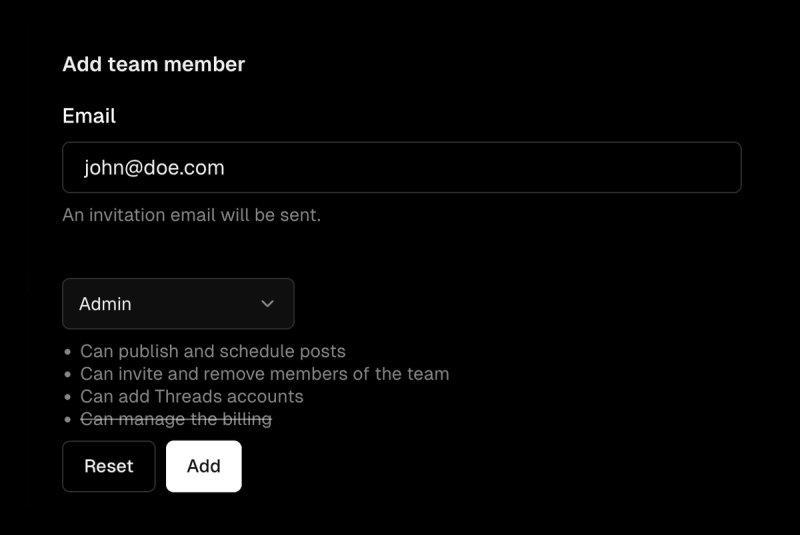
If you want to start over before sending, click Reset to clear the form.
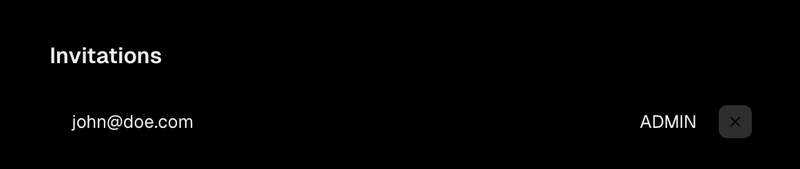
An invitation email will be sent automatically. Once they accept, they'll show up in your members list and can start working alongside you.
Changing someone's role
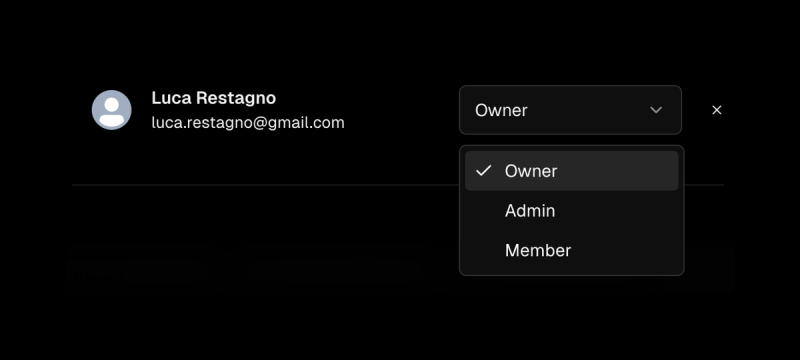
Promotions, demotions, restructures. Life happens. To change a role:
- Find the member in the Members list.
- Click the role dropdown next to their name (showing Owner, Admin, or Member).
- Pick the new role.
The change takes effect immediately. No emails, no reconfirmation needed.
Removing a team member
If someone leaves the team or no longer needs access:
- Find them in the Members list.
- Click the × next to their role.
- Confirm the removal.
They'll lose access to the team workspace right away, but their published posts and historical activity stay intact.

The danger zone: deleting a team
At the very bottom of Manage team, you'll find the Danger zone, and the name isn't dramatic for nothing.
Clicking Delete team permanently removes:
- The team itself
- All its members
- All social accounts associated with the team
- All engagement lists tied to the team
This action can't be undone, so only delete a team if you're absolutely sure. If you just want to step away temporarily, it's safer to remove members or downgrade your plan instead.
A few practical tips
- Use Admins generously, Owners sparingly. Most people who need elevated access just need Admin. Reserve Owner for the people who genuinely need to touch billing.
- Add Threads accounts at the team level. Once an Admin or Owner connects a Threads account to the team, every member can publish to it (based on their role). No more sharing credentials.
- Audit your team every few months. Freelancers come and go, agency clients churn. A quick review of your members list keeps your workspace tidy and secure.
Need help?
If something isn't working as expected, or you're not sure which plan is right for your team size, reach out to Support from your profile menu or email us. We'll point you in the right direction.
Your Threads growth starts here.
Schedule smarter. Grow faster. Start free.BlackTwist
Give your social a twist.
Links
PricingThreads SchedulerEngagerAnalyticsAI StudioCompareThreads vs. BlueskyHelp centerChangelogGlossaryBlog✨ Affiliate — Earn 30%
© Copyright 2026 BlackTwist. All rights reserved.